
In OptiMantra, you can create your own custom Type and Subtype categories to be able to tag, review, and analyze your supplies and services - there are a number of different use cases for why you would want to do this including to
categorize your services by type of service or modality, or to categorize your products by kind, by container or contents.
In this article, we look at
- An Overview of Categorization
- Add Types/SubTypes
- Assign to Services
- Assign to Supplies/Inventory
- Analyze in Analytics
An Overview of Categorization
Types and subtypes in OptiMantra are tremendously flexible, so you can use them however you would like!
They are independent of each other, so you can use both type and subtype jointly to define your inventory or treat them as separate categories
Because Types/Subtypes work for both Services and Inventory/Supplies, your values can span both.
For example
- You could add Types appointments and Subtypes by modality
- You could ALSO have Types be types of inventory and subtypes be the form of the contents
- Or, you can have these be completely independent (as in the example below)
You'll be able to use these categories to run Analytic reports.
Add Types/SubTypes
To add Types/SubTypes, go to Settings > Services > Service & Product Categorization
Here you can easily add in sub-types and types by typing them into the bar at the top and pressing Add
Assign Types/SubTypes to Services
To Assign Types/subTypes to services, go to Settings > Services > Services (Fee Schedule).
When you Add New Service or edit an existing service, you'll be able to add your categorizations in the program.
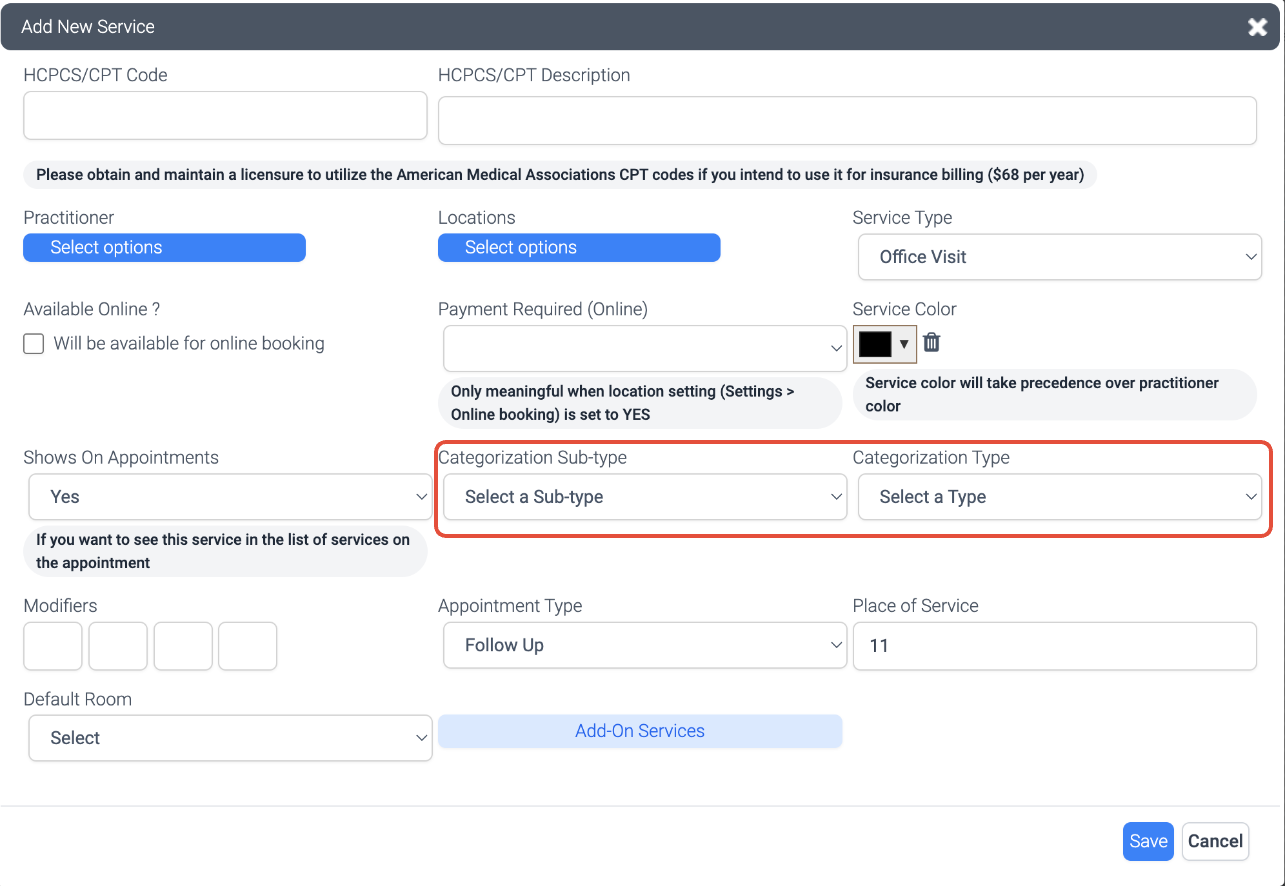
You can also do a bulk update by selecting More > Categorize Services
Assign Types/SubTypes to Supplies/Inventory
Exactly like above; in Supplies, you can add Categorizations to your supplies when you add a new item or edit an item in inventory
Analyze Types/Subtypes in Analytics
Anyalze Types/SubTypes using the Analytics feature in the program.
Go to Analytics > List of Reports
Search for Type/Subtype
And Select either Summary of Category (Type/Subtype) Charges and Payments or Add the 'With Patient, Provider, and Date of Payment' option for more details
This will pull-up your analysis organized by Types/Subtypes! Remember, our Analytic reports are very flexible so review our Analytics Knowledge Base articles if you want to adapt your reports' dates, or change the content, or to export the data